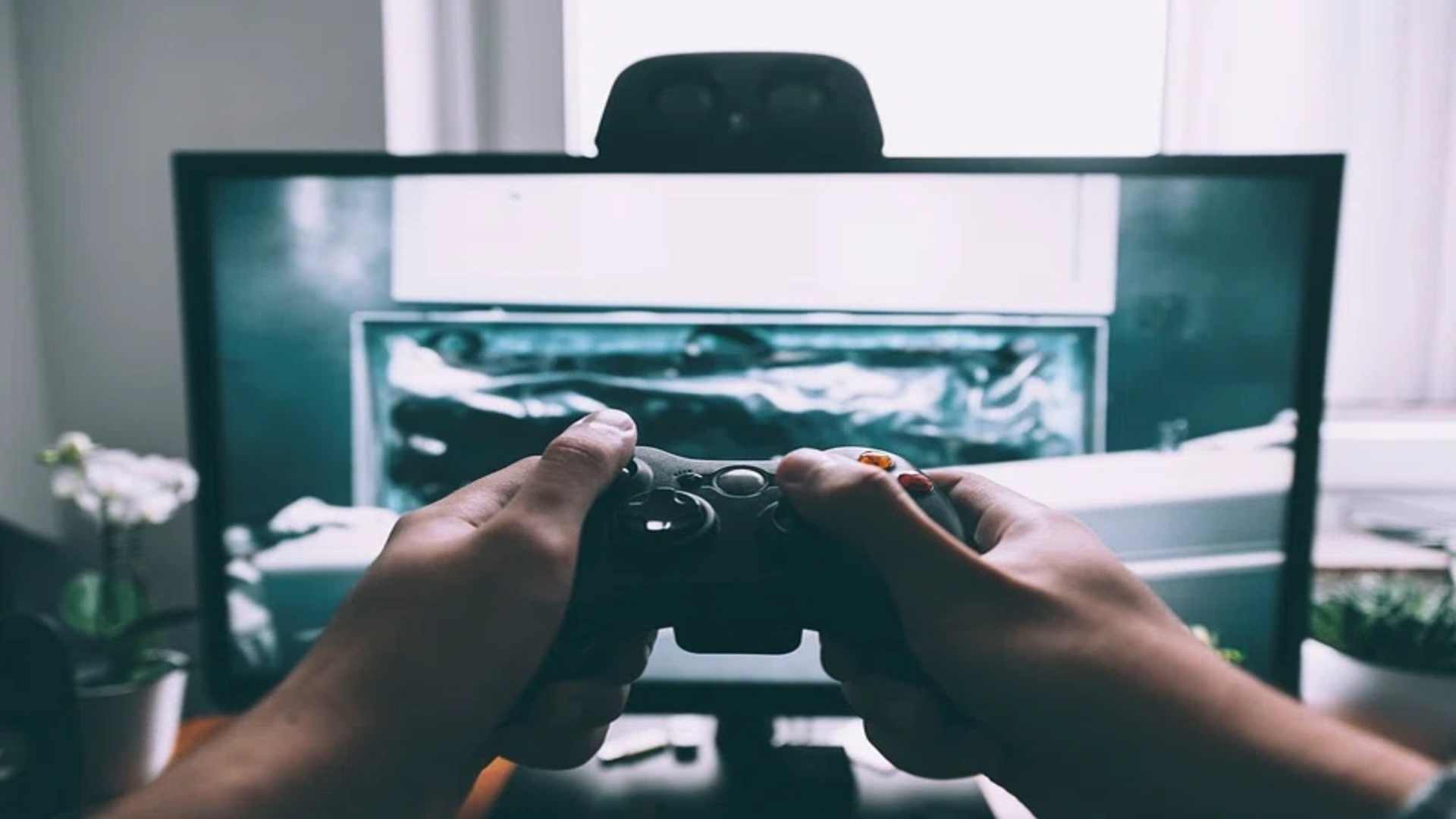
Connecting a game controller to Steam enhances the gaming experience across various titles by offering precise input controls and ergonomic comfort. Whether you prefer wired USB connections or wireless Bluetooth pairing, Steam provides native integration for modern pads including PlayStation DualSense, Xbox Wireless Controllers, and Nintendo Switch Pro Controllers.
Setting Up Your Wired or Wireless Connection
To establish a physical connection, simply plug your gamepad into an available USB port on your PC using a reliable data cable. For wireless connections, turn on your controller's pairing mode and select it from your computer's Bluetooth device menu.
Once connected to your operating system, launch Steam to allow the client to detect the hardware automatically. Most modern gamepads will be instantly recognized without requiring extra software downloads.
Configuring Controller Settings in Steam
Navigate to the Steam settings menu and open the Controller tab to access customization options. Enabling support for specific gamepad configurations allows Steam Input to translate button layouts seamlessly for unsupported games.
Users can test button inputs, adjust joystick dead zones, and recalibrate sensors within this menu interface. Fine-tuning these options ensures smooth responsiveness during intensive gameplay sessions.
Troubleshooting Common Detection and Input Issues
If your device fails to register, try disconnecting other USB peripherals that might cause hardware conflicts. Restarting the Steam client or cycling your computer's Bluetooth antenna often resolves temporary connection drops.
Check if Steam Input is explicitly enabled under individual game properties when titles fail to respond to button presses. Running Steam in Administrator mode can also clear permission blocks that prevent input signals from passing through.
Optimizing Layouts with Steam Input Customization
Steam Input allows players to remap any button or trigger to match personal preferences or accessibility needs. Community-created configurations can also be loaded directly from the controller menu for popular games.
Saving custom profiles ensures your preferred button layouts load automatically every time a game launches. This versatility makes PC gaming with a controller highly adaptable and intuitive.